Fix "Failed to download repository information" Error
How to fix the "Failed to download repository information" error that may occur if you added a third-party software repository.
If you previously added third-party software sources to your system (i.e. an APT repository or PPA), you may encounter a message which indicates that some remote repositories can’t be reached.
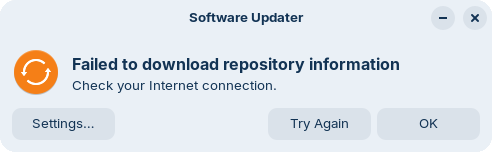
For example, the following error may appear in the Software Updater in such cases:
Or the following error may appear in the Upgrade Zorin OS app:

Check your Internet connection
Please check that you’re on a stable Internet connection. You can do this by visiting a few pages in your web browser and making sure they’re loading consistently without errors.
If your Internet connection is working correctly, please note that some software repositories may experience temporary downtime on their servers occasionally. It may be best to wait a little while before trying another software update or upgrade.
If the issue still persists, it’s likely that one of the third-party software repositories you added to your system was either configured incorrectly or deprecated by its software vendor. To resolve this error, please identify the affected repository on your system and either edit or remove it from your system.
Identify the broken repository
Open the Zorin Menu → Utilities → Terminal and run the following command:
sudo apt update
After the command finishes running, you should see an error message close to the bottom of the text output with the prefix E: that references the affected repository. The message should look like the following highlighted text:
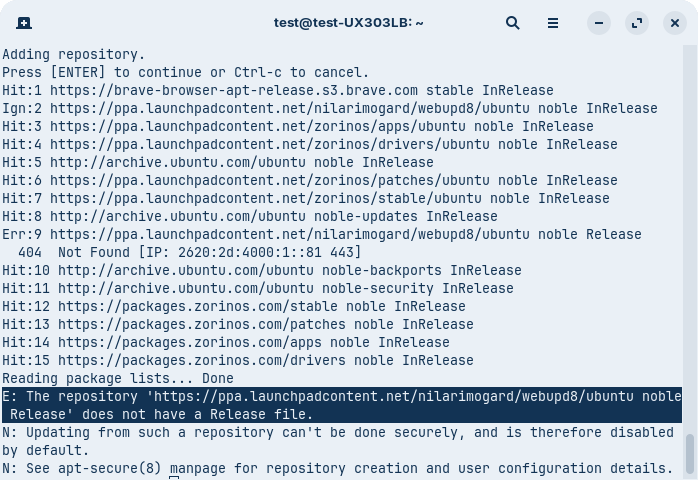
Please take note of the web address of this broken software repository.
We would recommend you to first search for the software vendor on the web to determine what has happened to their repository server.
Based on the information you find about this repository, you can either edit the repository or remove it from your system in the next stage.
Edit or remove the broken repository from your system
- Open the Zorin Menu → System Tools → Software Updater.
- After the Software Updater has finished checking for updates, click on “Settings…”.
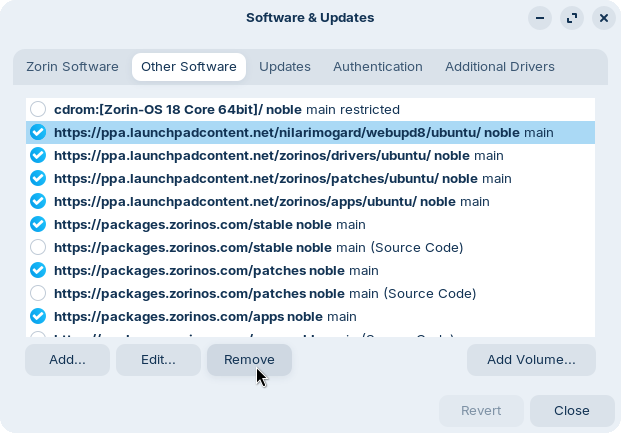
- Navigate to the “Other Software” tab.
- Click on the broken third-party repository in the list to highlight it.WarningPlease avoid removing or making changes to any core Zorin OS software repositories, such as those with the addresses
packages.zorinos.comorppa.launchpadcontent.net/zorinos. If you experience any issues with these repositories, they are likely to be caused by temporary server downtime. - Either edit repository or remove it from the list:
- Edit. You may need to change the version codename of the repository (xenial, bionic, focal, etc.) to match the current version of the operating system. The correct version codename for Zorin OS 18 should be “noble”. To edit the repository information, click the “Edit…” button below the list.
- Remove. If you couldn’t find information about how to fix this repository or you’re unsure how to proceed, we would recommend you to remove this repository from your system. To remove this repsitory, click the “Remove” button below the list.

- Close the “Software & Updates” window and agree to “Reload” the package sources when prompted.
You should now be able to install software updates or upgrades normally on your system.
If the broken repository isn’t listed in Software & Updates
If you followed the instructions above, but couldn’t find the broken software repository in the “Other Software” list in the Software & Updates app, please follow these steps instead:
Open the Zorin Menu → Utilities → Terminal.
Run the following command in the Terminal:
nautilus admin:///etc/aptIf you’re using Zorin OS Lite. Run the following command in the Terminal instead:
sudo thunar /etc/apt
Type your password when prompted. Please note that you may be asked to enter your password multiple times.
Right-click on the “sources.list” file and select to open it with the “Text Editor”.
Locate the line with the web address of the broken repository in the text file.
Edit the repository address on this line or delete the line from the text file to remove software the repository from your system.
WarningPlease avoid deleting or making changes to any other software repositories in this file. Doing so may affect your ability to receive important software updates in the future.Save the file and close the Text Editor window.
Open the Zorin Menu → System Tools → Software Updater to reload the package sources.
You should now be able to install software updates or upgrades normally on your system.